How to screenshot a whole AI chat as one image
A long chat with ChatGPT or Claude doesn’t fit on one screen, so there are four ways to get it into one image:
- Your phone’s scrolling screenshot. Apple’s help describes Full Page on the iPhone, and Google’s describes Capture more for Android 12 and up. Both describe them for webpages and screens that scroll, and don’t say whether they work inside the ChatGPT or Claude app.
- Ordinary screenshots, joined into one. Counterparts Screenshot, our free tool, reads up to 10 screenshots in your browser and saves the chat as one tall image. It works on a phone and with any chat app, because it starts from screenshots, and it can get a line wrong where two screenshots meet.
- A browser extension, on a computer. Several Chrome extensions save a chat page as one long image.
- A share link, for readers who’ll click through.
An AI drafted this page from the sources below and another AI checked it. No person has run these steps. An AI ran Counterparts Screenshot twice, in a desktop browser, on test screenshots made for this page, and published nothing. Counterparts Screenshot is ours: Mike LaPeter runs Counterparts.
Which way to use
| Where your chat is | Try first | Then |
|---|---|---|
| A phone app (ChatGPT, Claude, any other) | The phone’s scrolling screenshot, if it’s offered there | Ordinary screenshots joined in Counterparts Screenshot |
| A browser on a computer | A chat exporter extension | Screenshots joined in Counterparts Screenshot |
| Anywhere, and readers can click a link | The app’s share link |
What differs is where the image comes from. A scrolling screenshot or an extension copies what the app shows, so the image is exactly what you saw, but it needs the app or the page to cooperate. Counterparts Screenshot draws the words again from your screenshots, so it works wherever you can take a screenshot, and the image has to be checked, because the words were read by machine.
On a phone: the scrolling screenshot
iPhone. Apple’s guide: press the side button and volume up together (Home and side button on an iPhone SE), tap the thumbnail that appears in the lower left, then tap Full Page to capture content beyond the screen. Its example is an entire webpage in Safari. To keep only part of a full-page screenshot, tap the crop button and drag the handles.
Android. Google’s help: press Power and Volume down together, tap Capture more at the bottom, and use the crop guides to choose what to keep. It’s for Android 12 and up, “on most screens that allow you to scroll.”
Neither page lists the chat apps, and we haven’t tried either one in the ChatGPT or Claude app. If the button isn’t there, or the result stops short of the end, use the next way.
Join ordinary screenshots with Counterparts Screenshot
- Take the screenshots, starting at the top of the part you want and ending at its last message. Move down the chat by a bit less than a screen each time, so each screenshot repeats only the last two or three lines of the one before.
- Look at each screenshot’s top and bottom edges. If a line is cut in half under the app’s title bar or behind the message box, crop it off in your photo app. The last screenshot usually repeats a lot, because the chat ends partway down the screen. Crop its top down to the first line the previous screenshot didn’t show.
- Open counterparts.ai/screenshot in any browser, phone or computer. It’s free, with no account.
- Choose the screenshots in the order you took them (10 at most). Each one has arrows to reorder it and × to take it out. Wait until it says “Read 5 of 5.” (or however many you chose). If a screenshot shows a note that it may not be a chat, and it is one, press It is a chat, draw it, and the count will catch up.
- Read the preview against your screenshots (see what to check).
- Press Save one tall image. You get one image of the whole chat, 1080 pixels wide (smaller for a very long chat on an iPhone; see below). On a phone whose browser can share files, saving opens the share sheet, from which it can go to your photos. Otherwise it downloads.
Each image ends with a footer: a postmark saying it came from a screenshot with no user edits, which you can turn off, a credit to counterparts.ai/screenshot, a note that we aren’t affiliated with Anthropic or OpenAI, and a one-line description of Counterparts.
How tall it gets. In our test, five phone screenshots made an image 10,096 pixels tall, and 8,849 after cropping. An iPhone browser (Safari, and in most places Chrome too, which must use Safari’s engine) won’t draw an image more than about 15,500 pixels tall at this width (16,777,216 pixels in all). Above that, the tool draws the whole image smaller, and if it still can’t, it says the conversation is too long for one image in this browser. At the rate of our test, that’s about seven or eight phone screenshots. Other browsers allow much bigger images. For a longer chat, make two images, each from its own set of screenshots.
Besides the tall image, the tool can split the chat into same-size gallery cards or copy it as text. Posting an AI chat on Reddit covers the gallery.
What our test run showed
The screenshots below are test images made for this page: an invented chat about how much water to carry on a hike, laid out like a phone app with a title bar and a message box, captured as five iPhone-sized screenshots. Nobody had this conversation.
On the first try, with the screenshots exactly as taken, the tool read all five and chose its Claude-style look. Every number came through: 14 miles, 3.5 liters, 0.75 liters an hour, 75°F, 32°F, 30 minutes. The five-item list kept its order, and each of the ten questions landed on the person’s side. Two seams went wrong.
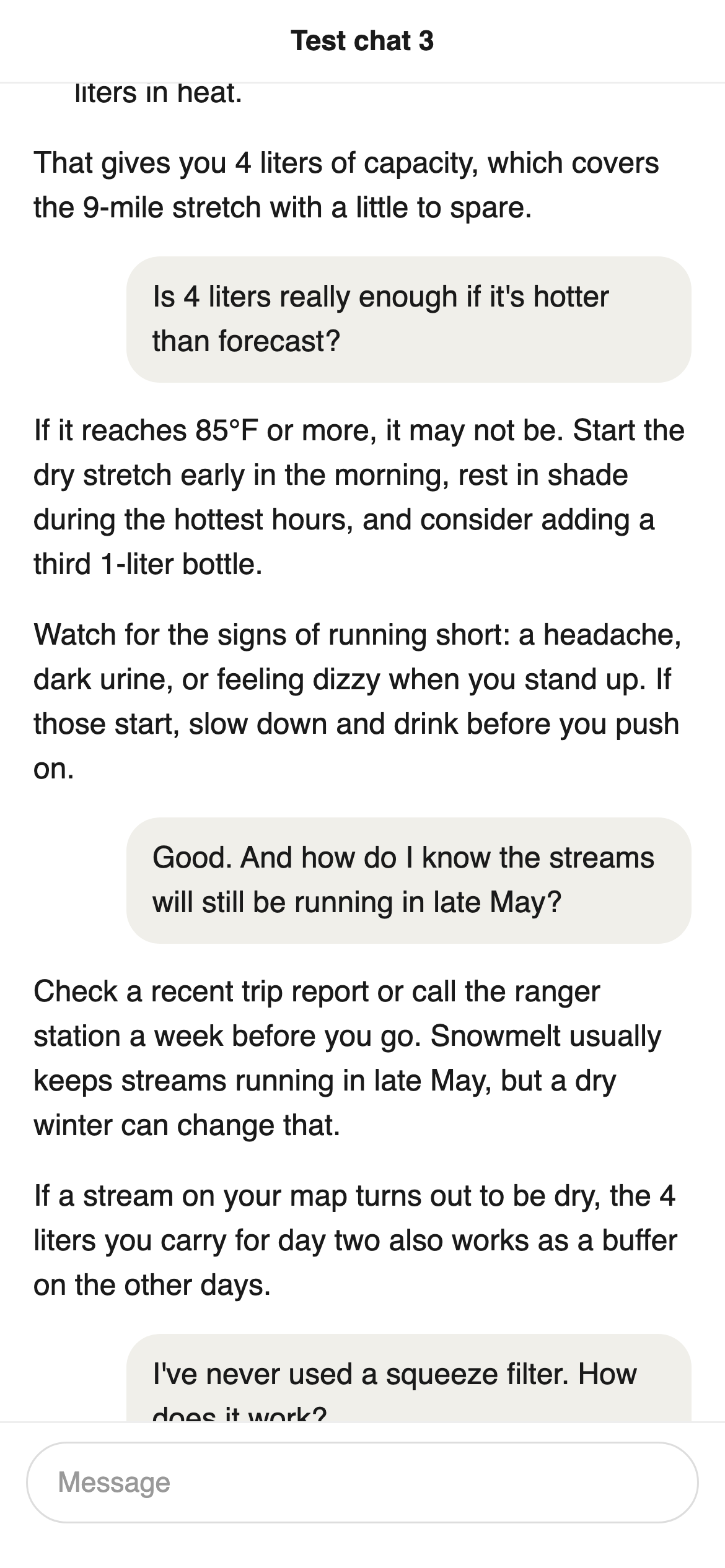
Test screenshot 3 of 5, made for this page. Its last line is half hidden behind the message box.
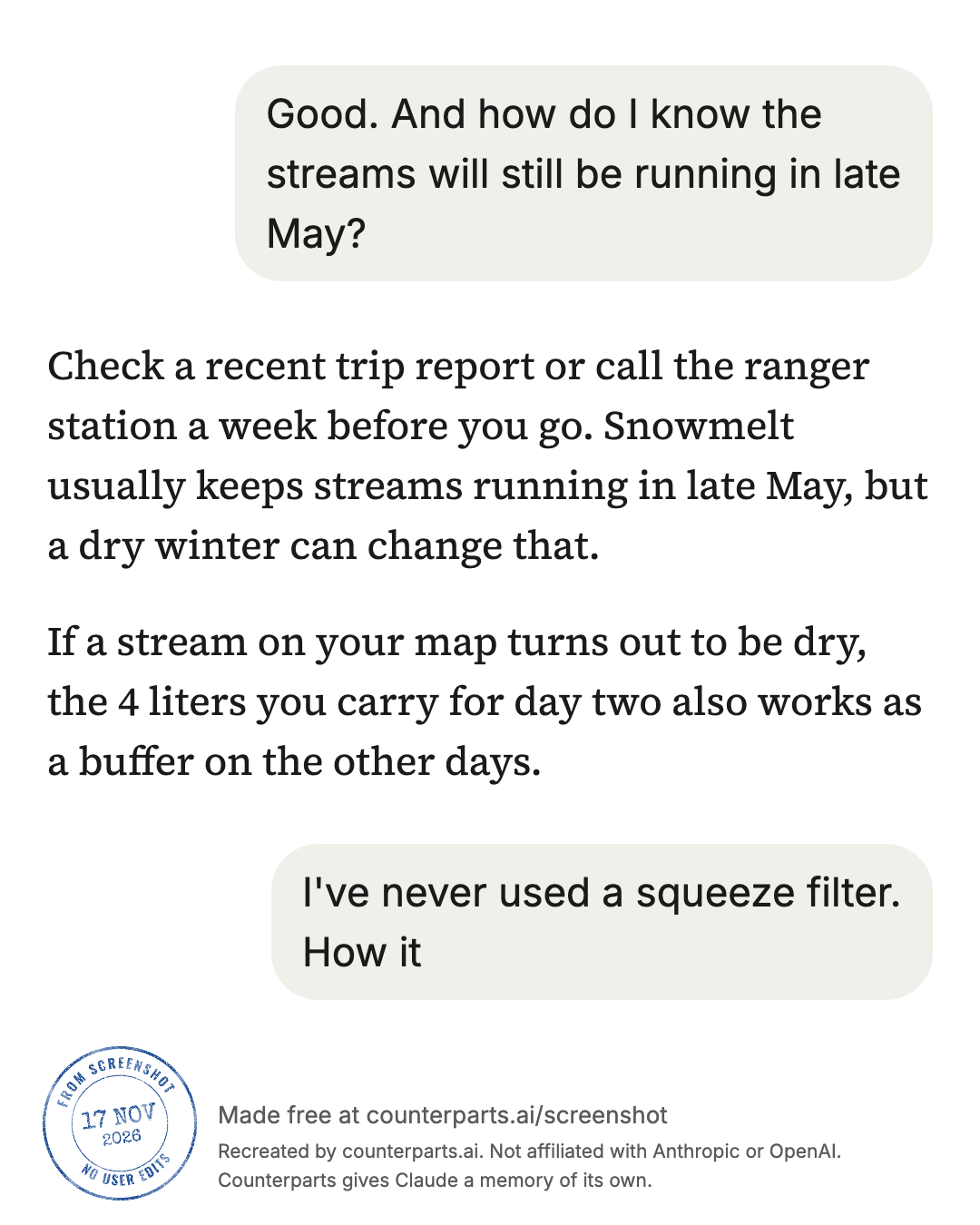
Part of the first try’s output.
- A half-hidden line. The question at the bottom of screenshot 3, cut through by the message box, was drawn as “I’ve never used a squeeze filter. How it”. After it came a stray AI line, “on the other days.”, and then the question again in full.
- A long overlap. The last screenshot repeated about half of the one before. The tool looks back only a few lines for a repeat, so a question, its two-paragraph answer and the next question were drawn twice.
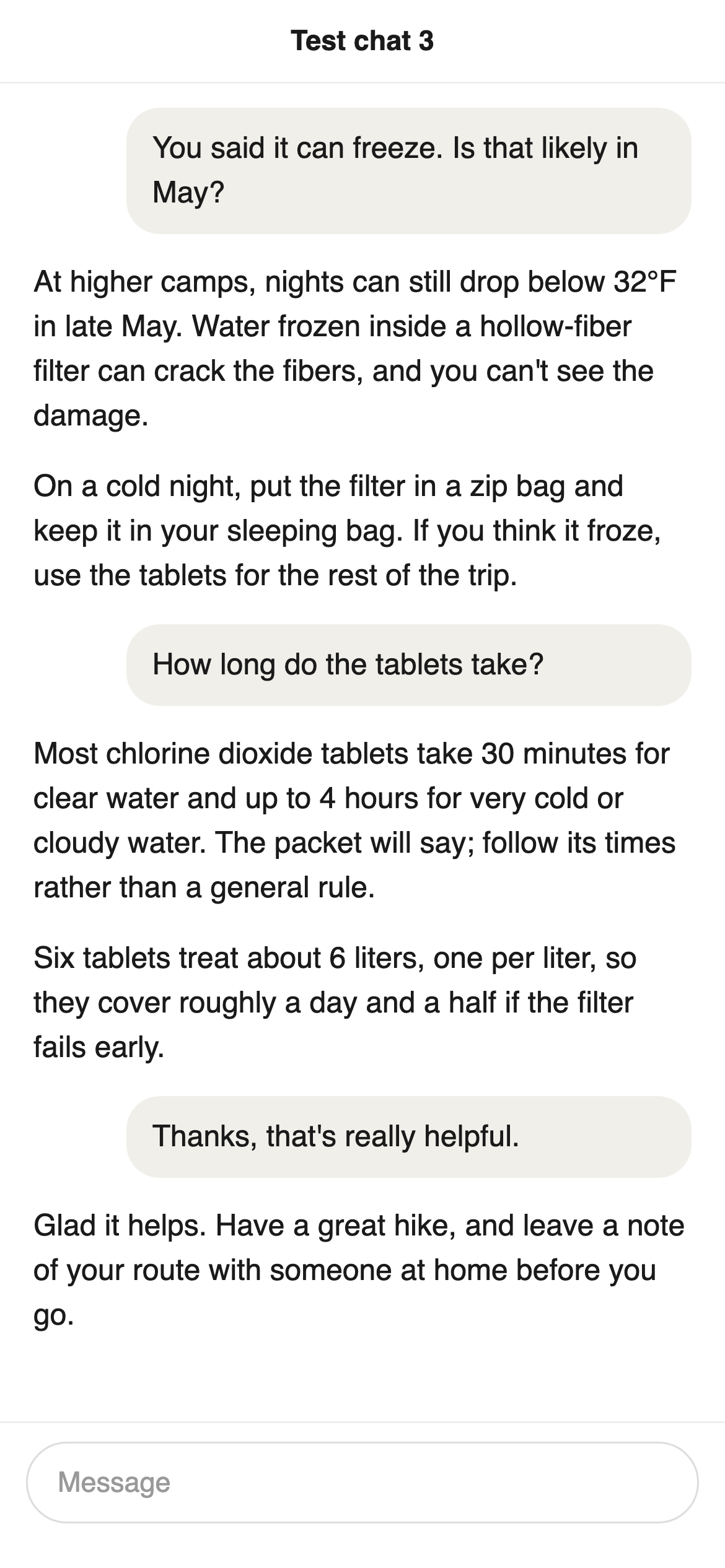
Test screenshot 5 of 5. Everything above “Most chlorine dioxide tablets” was already in screenshot 4.
Cropping fixed both. We cut screenshot 3 off just above the half-hidden question, cut the top of screenshot 5 down to “Most chlorine dioxide tablets”, and ran it again. The seams came out clean, and the text matched the original word for word except in three places, all still there in the second run:
- “at a time” came out as “ata time”;
- “every few miles” came out in italics, twice, though nothing in the chat is italic;
- “A common” was copied in from the screenshot’s own pixels, in a different typeface from the words around it, because the reader wasn’t sure of it.
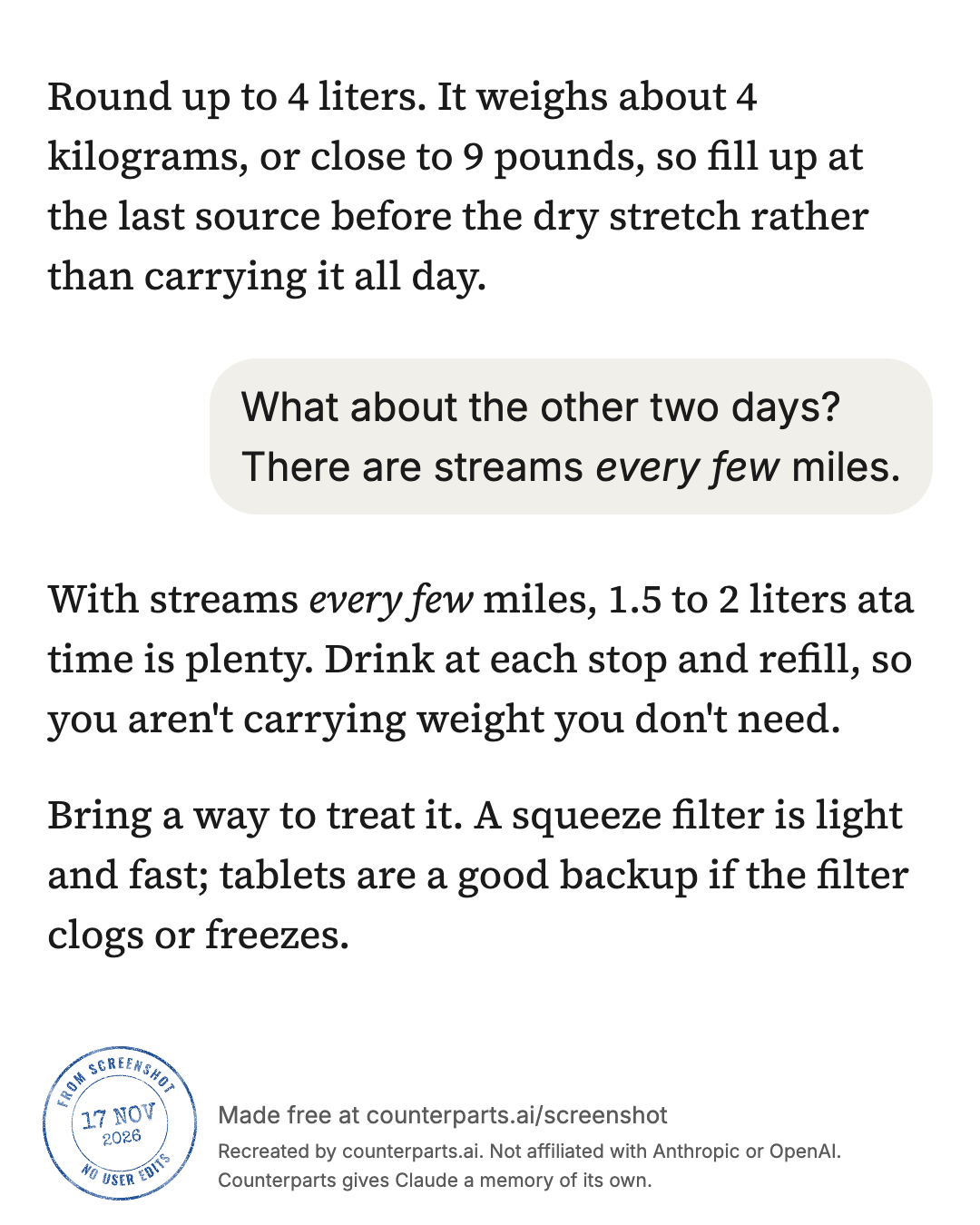
From the second run: “every few” in italics and “ata time”.

The one tall image from the second run, made from the five test screenshots with two of them cropped. The first try’s, with the repeated seams, is test-tall-first-try.png.
This was a clean, computer-made test, the easy case. We also scored the tool on screenshots of 18 recent public chats: 14 came out with no major error. That’s a small sample.
What to check before you share it
- The seams: look at the first and last lines from each screenshot: a line drawn twice, a half sentence, or a stray line on the wrong side.
- Numbers, names and anything you’ll quote. A misread digit looks as clean as a right one.
- Who said what. In our first try, a repeated question ended up inside the person’s bubble after a different question.
- Run-together words, and italics that weren’t in the original.
On a computer: a browser extension
Extensions in the Chrome Web Store work from the chat page itself, so they install in Chrome on a computer and need the chat open there. Their store listings say:
- ChatGPT Long Screenshot Exporter: made for ChatGPT. You select the messages you want, and it stitches them into one long image to download or copy. The listing says processing stays on your device. About 1,000 users.
- AI Exporter: ChatGPT, Claude, Gemini and other AI sites. It saves a chat as PDF, Word or Markdown, and as “Long Image Sharing Cards”. Long images are free, and PDFs are limited to three a day on the free plan. About 100,000 users.
- ChatShot (by sovkit): about 15 AI chat sites. It scrolls and stitches long chats into one image, and a watermark comes off only with Pro.
We haven’t tested any of them. A very long chat may not capture cleanly: one user on OpenAI’s community forum reported in October 2026 that their full-page capture tool stopped after a second or two on long ChatGPT chats, and that messages vanished as the page scrolled, leaving white gaps. A long Wikipedia page captured fine with the same tool. They didn’t know the cause. Whatever you use, check that the image reaches the last message.
If you don’t need an image
A share link opens the real chat on the app’s own site, which is better proof of what was said, but readers have to click. Claude’s help puts the Share button at the top right of a chat; a second Share in the box that opens makes the link. Whoever has it sees the chat as it stood when you shared it, without your attached files. On Team and Enterprise plans, links open only for the same organization. The posting guide’s share-link section covers ChatGPT’s too.
A data export isn’t a way to get one chat. Claude’s export emails you a link to all your conversations as data, it runs from Settings, Privacy on the web or Claude Desktop, not the phone apps, and the link lasts 24 hours.
Hiding names first
A whole-chat image shows more than one screenshot does, so look for your name, other chats’ titles and anything about other people before you share it. In Counterparts Screenshot you can tap a word or a line in the preview to blur it. For the full checklist, and what a blur does and doesn’t protect, see How to hide names and private details in an AI chat screenshot.
Questions people ask
How do I screenshot an entire ChatGPT conversation?
On a computer, a Chrome extension that reads the chat page can save the whole conversation as one long image; AI Exporter and ChatGPT Long Screenshot Exporter are two whose store listings say so. On a phone, take ordinary screenshots from top to bottom, then join them: Counterparts Screenshot, our free tool, reads up to 10 of them in your browser and saves the chat as one tall image. Check the result against your screenshots, especially where one screenshot meets the next.
Can I take a scrolling screenshot of ChatGPT on an iPhone?
Apple’s guide says to tap the screenshot thumbnail and then Full Page to capture content beyond the screen, and gives an entire webpage in Safari as its example. It doesn’t say which other apps offer Full Page, and we haven’t tried it in the ChatGPT or Claude app. If it isn’t offered there, take several ordinary screenshots and join them.
How do I take a scrolling screenshot of a chat on Android?
Google’s Android help says: press Power and Volume down together, then tap Capture more at the bottom, and use the crop guides to choose how much to keep. It works on Android 12 and up, on most screens that scroll. We haven’t tried it in the ChatGPT or Claude app.
How do I stitch several chat screenshots into one long image?
Add them to Counterparts Screenshot, first one first, and press Save one tall image. It reads the words and draws the chat again as one image 1080 pixels wide, dropping lines that a screenshot repeats from the end of the one before when the overlap is short. Where a line is cut off under the app’s header or message box, or the overlap is long, crop the screenshot first, or a line can come out twice or half-read.
Is there an extension that takes a long screenshot of ChatGPT?
Yes, several in the Chrome Web Store. ChatGPT Long Screenshot Exporter is made for ChatGPT and stitches the messages you pick into one image. AI Exporter and ChatShot list Claude, Gemini and other AI sites too. They work from the chat page, so you need the chat open in Chrome on a computer. We haven’t tested them.
Why does my full-page screenshot of a long ChatGPT chat come out cut off or blank?
One user reported on OpenAI’s community forum in October 2026 that a full-page capture tool stopped after a second or two on long ChatGPT chats, and that messages disappeared while the page scrolled, leaving white gaps. A long Wikipedia page captured fine with the same tool. They said the cause wasn’t confirmed. If it happens to you, take screenshots as you scroll and join them instead.
How many screenshots can Counterparts Screenshot join?
Ten at a time. If you choose more, it adds the first ten and says so. For a longer chat, make two tall images. On an iPhone, the browser limits how big one image can be (Chrome on an iPhone included, since outside the EU and Japan iPhone browsers must use Safari’s engine), so a very tall chat image is drawn smaller there; if it’s still too big, the tool says the conversation is too long for one image in this browser.
Are my screenshots uploaded?
No. Counterparts Screenshot reads them in your browser, and the screenshots aren’t sent anywhere. The site does count a few actions, such as how many screenshots were read and which kind of image was saved, without the words or the images. Get a link is the one thing that sends any of your chat, and only after you agree: it puts the words it read, small images of words it wasn’t sure of, and the emoji on a public page at screenshot.cards, which anyone holding the link can open until you delete it or we take the page down.
Questions? Ask in r/AIMemorySystems.
References
- Apple: Take a screenshot on iPhone
- Google: Take a screenshot or record your screen on your Android device, Install and manage extensions
- Chrome Web Store listings: ChatGPT Long Screenshot Exporter, AI Exporter, ChatShot
- OpenAI community forum: Long ChatGPT conversations no longer render completely while scrolling, one user’s report
- Anthropic: Share and unshare chats, Export your Claude data
- Ours: Counterparts Screenshot, whose source code we checked this page’s claims about the tool against
More guides: all guides.